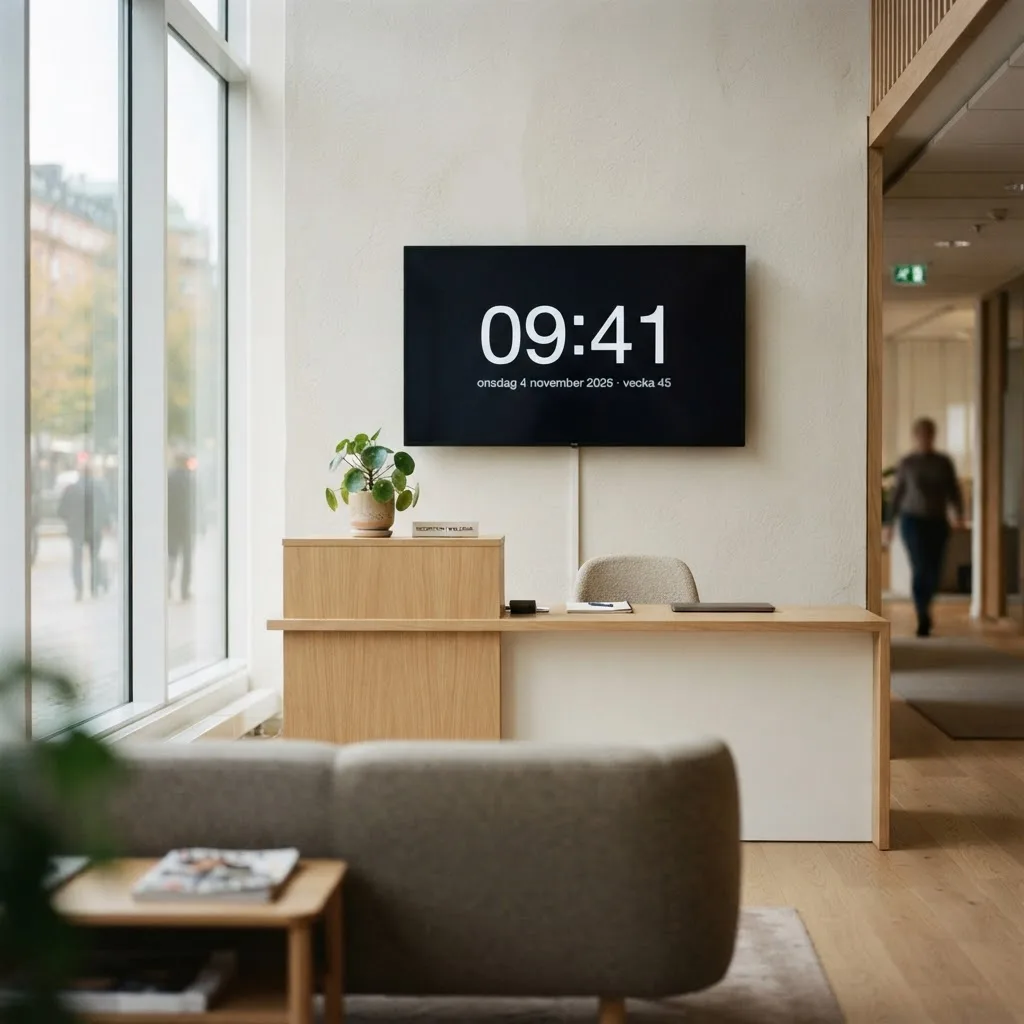
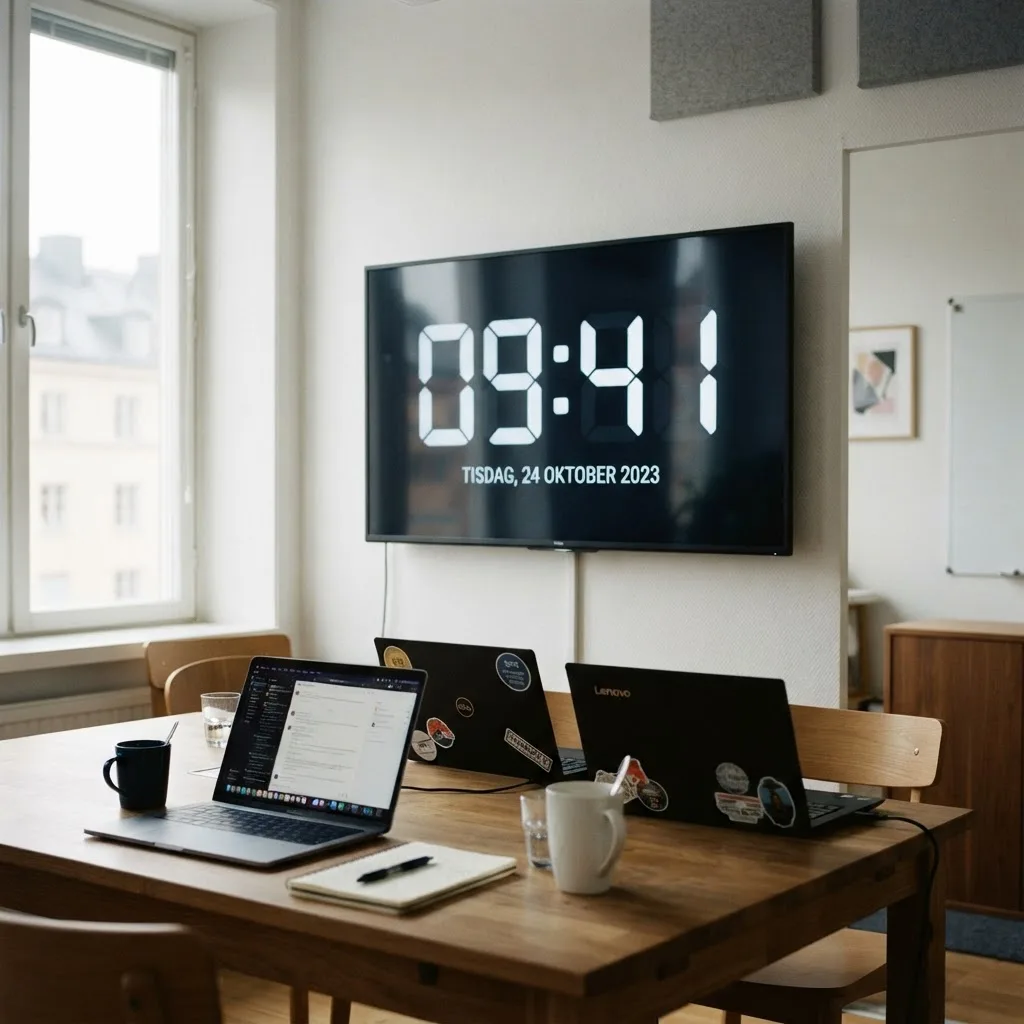
Click the gear icon in the top right corner of the clock to change settings: 24 or 12 hour format, show or hide seconds, show the date and choose between nine clock templates and colours. You can also add your own logo and place it at the top or bottom, left, centre or right. The logo is saved only in your browser and is never uploaded.
Quick setup:
21:02:20
Wednesday, 4 November 2026
Prague
Readable from across the room
Big digits that fill the screen. Adjust the size from 50 to 150%.
Your own logo
Add your company or school logo in six positions. Stored only in your browser.
Every time zone
Show Swedish time or the time in New York, Tokyo or any city.
Presentation mode
Buttons and the mouse pointer fade out after three seconds, so only the clock shows.
Night mode
A dimmed clock that won't glare in dark rooms or at night.
Keyboard shortcuts
F for fullscreen and S for settings. No mouse needed.
A big clock on the wall means nobody has to ask what time it is or check their phone. Here are a few places where it makes a difference.
Offices and reception
A screen in the lobby showing Swedish time next to London or New York. Visitors see right away that they are on time, and colleagues know whether it is too late to call the overseas office. Add your company logo and it looks like part of the interior.
Meeting rooms
Meetings run over when nobody can see the time. With a big clock on the room's TV, everyone notices when time is running out without anyone checking their phone. Turn on night mode if the room is used for presentations with the lights down.
Gyms and training studios
The instructor can read the time from across the room and keep the class to exactly 45 minutes. The digits stay readable even with sweat in your eyes. Show seconds if you run intervals.
Yoga, dance and music studios
A calm, dimmed clock that doesn't break the mood but shows when the next group is due. Pick a dark template and let the mouse pointer fade away, so only the time shows.
Classrooms and exams
Students can see how much time is left without raising their hand. Project the clock on the board during a test and the teacher no longer has to call out the time.
Studios and live broadcasts
Presenters and crew need to share the same time. A clock with seconds on a monitor next to the camera makes it easy to start and finish right on the minute.
Up and running in a minute
1Open the page in the browser on the computer or TV connected to the screen.
2Pick a time zone, a template, and whether to show seconds and the date.
3Press F or the fullscreen button. Done.
4Bookmark the page and the same settings open next time.
Set up the clock for your room
Quick setups for common rooms
Above the clock there are four quick setups. Meeting room gives big digits without seconds, so nobody gets stressed by a ticking clock. Gym shows seconds at the largest size for intervals. Reception shows the date and week number for visitors. Studio dims the clock and shows seconds for an exact start. You can change everything afterwards.
Share the same clock with colleagues
Every setting is stored in the page address: time zone, template, size, seconds, date and night mode. Click Copy link with my settings and send it to whoever runs the screen in the next room. Or bookmark it on the computer connected to the TV. Your logo and custom background are not included in the link, because they are only stored in your own browser.
Keep the screen from going dark
When the clock is in fullscreen, the page asks the browser to keep the screen on. This works in most modern browsers, such as Chrome and Edge. If it doesn't work on your device, turn off the screensaver and sleep mode in the computer's settings. Many TVs also have their own power-saving mode that needs to be switched off.
About TV browsers
Built-in smart TV browsers vary a lot. Some support fullscreen, others don't. The most reliable option is a small computer, a streaming stick with a browser or a laptop connected by HDMI. Try the page on the TV before you rely on it.
The clock is as accurate as your device
The clock shows the time your computer or TV already has. Most devices fetch the time automatically from the internet and are correct to a fraction of a second. If the time looks wrong, check that automatic time is turned on in the device settings.
Try it on your own screen
It costs nothing and you don't need an account. Open the clock, press F and see how it looks on the wall.
A fullscreen clock shows the current time with large digits that fill the whole screen. It is readable from a distance and suits offices, classrooms, meeting rooms, receptions, gyms, studios and control rooms.
How do I use it?
Choose a time zone in the list, for example Europe/Stockholm for Swedish time, and click Start fullscreen. Press Esc or click to exit. You can bookmark the page link so it opens directly with your chosen time zone.
How accurate is the clock?
The clock uses your device's system time and updates every second. Most computers and phones sync automatically with internet time and are accurate to a fraction of a second. Daylight saving time is handled automatically for every time zone.
Can I show the time in another country?
Yes. You can choose any time zone in the world, from Stockholm and London to New York, Tokyo and Sydney. This is handy for teams working across time zones or for showing the time of clients and colleagues abroad.
What can I customise?
Click the gear icon for settings. You can choose 24- or 12-hour format, show seconds, the date and week number, change the clock size and turn on night mode. Pick from digital and analog clock templates, such as a living forest, upload your own background image and add your logo in any corner. Buttons and the mouse pointer hide after three seconds in fullscreen.
Reminders with sound
Add your own reminders with a time, message and sound. Choose which weekdays they repeat on, how long the message is shown and how many times the sound plays. A countdown shows when the next reminder is due. Reminders are saved only in your browser.
Save and share your clock
Pick a ready-made preset with one click or make your own choices. All settings are stored in the link, so you can copy it and open the same clock on another screen or share it with colleagues.
Tips for monitors and TVs
Open the page in the browser on the computer connected to the screen and start fullscreen. Turn on Keep screen on in the settings so a phone or tablet does not turn its screen off. On a computer you should also turn off sleep and auto-lock in the system settings. On smart TVs it usually works in the built-in browser.